 Quicksloth
How to track wedding RSVPs in a spreadsheet
Last updated: 30 October 2026 · By Quicksloth
Replies come in by text, by card and through your mother. A spreadsheet turns them into the numbers you actually need: how many people said yes, how many said no, who you're still waiting for, how many meals of each kind to order and how many seats are left at each table. Here are the formulas, and what they show on a made-up 70-guest wedding, with 14 replies still out and with every reply in.
Short version: keep one row per person, with a Plus-one column and an RSVP column that only takes Pending, Yes or No. Count Yes and No with COUNTIF, and count as pending every named row that is neither. Give each row a seat count (1 for a yes, 2 for a yes with a plus-one, 0 otherwise) and add it up: that's your headcount. Meals and tables are the same seat count, filtered by meal or by table number.
The guests and numbers on this page are a made-up example, from the example file of our Wedding Guest List & Seating spreadsheet. Your venue's and caterer's own deadlines and minimums come first.
One row per person, three answers
The counting only works if the list is shaped for it. Five columns do the work; the rest (side, group, address, dietary needs) are for you.
| Column | What goes in it | Why |
|---|---|---|
| A · Name | One person per row, children included | Every count starts from the named rows |
| F · Plus-one | Yes or No | A plus-one whose name you don't know yet still needs a seat |
| H · RSVP | Pending, Yes or No, from a drop-down | Three fixed words are easy to count; free text isn't |
| I · Meal | Standard, Vegetarian, Vegan, Child or Other | The caterer needs a number per meal |
| K · Table | A table number | Seats per table add up from here |
The letters are the ones in our file, where the guest list starts on row 7; in your own sheet, use your columns and rows. Keep people who said no on the list: they're part of the "declined" count, and in our file their row turns gray instead of disappearing.
When you learn a plus-one's name, add them as their own row with Plus-one = No, and set the guest's Plus-one back to No. Otherwise that person is counted twice.
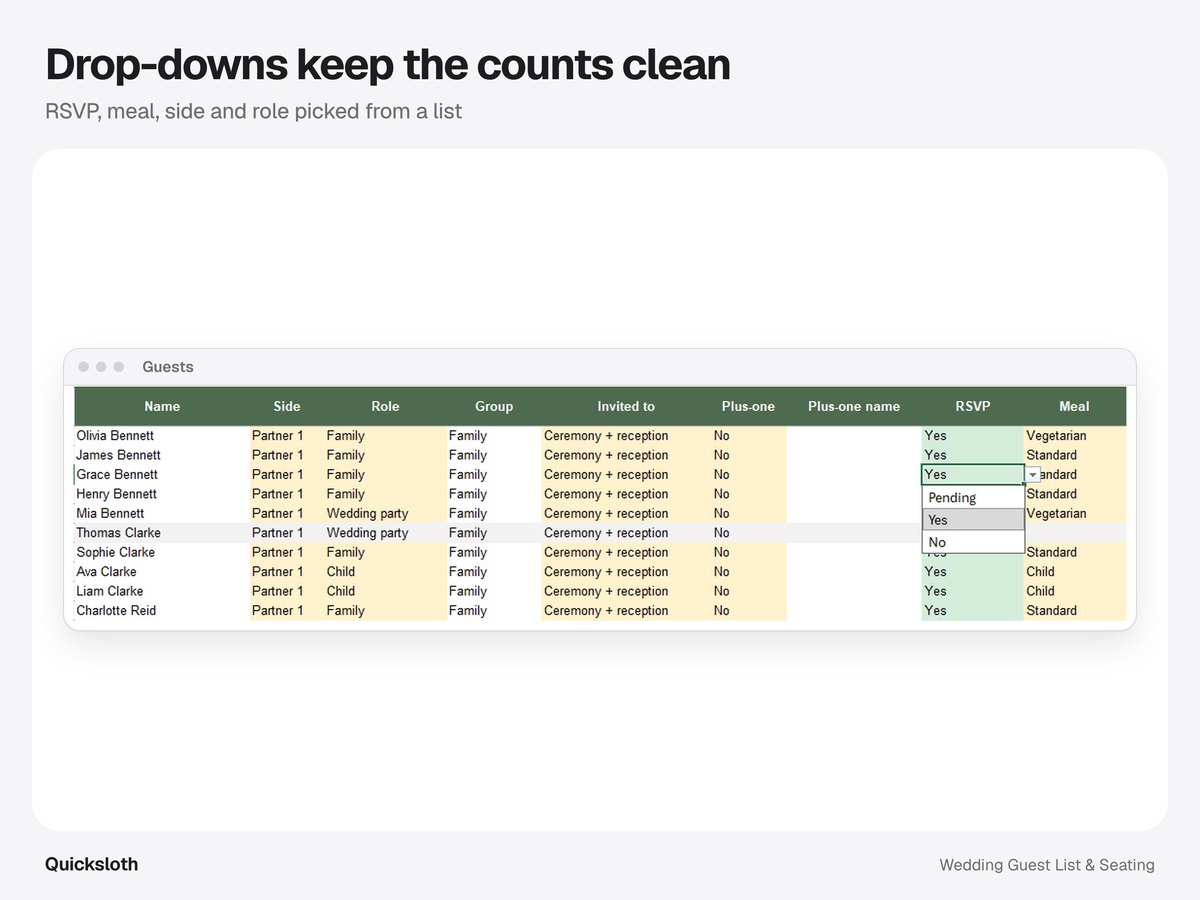
The formulas: yes, no and pending
These are the formulas of the counts at the top of the Guests tab in our file, for up to 500 guests (rows 7 to 506). They use only COUNTA, COUNTIF, COUNTIFS, IF and SUM, which work the same in Excel, Google Sheets and LibreOffice.
People invited   =COUNTA($A$7:$A$506)+COUNTIF($F$7:$F$506,"Yes")
Declined         =COUNTIF($H$7:$H$506,"No")
Pending          =COUNTIFS($A$7:$A$506,"<>",$H$7:$H$506,"<>Yes",$H$7:$H$506,"<>No")
Seats (row 7)    =IF($A7="","",IF($H7="Yes",1+IF($F7="Yes",1,0),0))
Seats confirmed =SUM($N$7:$N$506)- People invited counts the names and adds one for every plus-one.
- Declined counts the No answers. It counts rows, so a guest who declines with a plus-one is one row: the plus-one isn't coming either.
- Pending counts every row that has a name and isn't Yes or No. A blank RSVP cell, "Pending" or a typo all count as pending, so nobody falls through the gaps.
- Seats is a helper column (N in our file) next to each guest: 0 until they say yes, then 1, or 2 if they bring a plus-one. Its total is your confirmed headcount, the number the venue and caterer ask for.
Depending on your country settings, Excel and Google Sheets may show these formulas with semicolons instead of commas, like COUNTIF($H$7:$H$506;"No"). It's the same formula.
The example: 14 replies out, then all in
The example that comes with our file is a wedding for an estimated 70 guests at a venue for 80: 60 names on the list and 7 plus-ones whose names aren't known yet, so 67 people invited. The couple are on the list too: they eat and sit, so the caterer and the venue need them in the count. To show the counts while replies are still coming in, we also made a copy where 14 guests on one partner's side haven't answered yet (RSVP set back to Pending, no meal and no table). We recalculated both in LibreOffice and recounted them row by row with a separate script; the numbers match.
| Count | 14 still out (copy) | All replies in (example file) |
|---|---|---|
| People invited | 67 | 67 |
| Seats confirmed | 46 | 59 |
| Declined | 5 | 8 |
| Pending | 14 | 0 |
| Most seats you may still need | 62 | 59 |
| Seats still free at the venue (80) | 34 | 21 |
With 14 replies still out, the confirmed headcount is 46, but that's not the number to plan for. The most seats you may still need is the confirmed seats plus every pending guest and their plus-ones: 46 + 14 + 2 = 62. In this example it's also people invited minus the people who declined: 67 − 5 = 62 (that shortcut only holds while no one who declined had a plus-one). Our file shows the confirmed count and the pending rows; the 62 is one more line you can add yourself, or work out in your head from those two.
With every reply in, the confirmed headcount is 59: 52 guests said yes, and 7 of them bring a plus-one. Eight said no. Against the venue's 80 seats, 21 are still free.
Meal counts for the caterer
A meal only counts when its guest has said yes. Each line of the meal table in our file is one COUNTIFS on the Meal and RSVP columns:
Standard (and each meal)   =COUNTIFS($I$7:$I$506,"Standard",$H$7:$H$506,"Yes")
Not chosen yet             =COUNTIFS($H$7:$H$506,"Yes",$I$7:$I$506,"")
Plus-ones without a row    =COUNTIFS($H$7:$H$506,"Yes",$F$7:$F$506,"Yes")
In the file, the meal name is in the cell next to the formula, so the formula refers to that cell instead of the word in quotes.
| Meal | 14 still out (copy) | All replies in (example file) |
|---|---|---|
| Standard | 26 | 33 |
| Vegetarian | 11 | 15 |
| Vegan | 0 | 0 |
| Child | 4 | 4 |
| Other | 0 | 0 |
| Not chosen yet | 0 | 0 |
| Plus-ones without a row | 5 | 7 |
| Total | 46 | 59 |
The total always equals the confirmed headcount, and that's the check to make before you send the numbers. Two lines need a follow-up: Not chosen yet (a yes without a meal) and Plus-ones without a row, whose meal nobody has picked. In the example, 7 plus-ones still need a meal choice, so the caterer gets 33 standard, 15 vegetarian and 4 children's meals, plus 7 still to confirm. Allergies go in the Dietary needs column: in the example, two confirmed guests have a nut allergy, which the caterer needs by name, not as a number.
From RSVPs to tables
Seating uses the same Seats column. Type a table number next to each guest and add up the seats per table:
Seats used (table in P7)   =SUMIF($K$7:$K$506,$P7,$N$7:$N$506)
Free                       =$R7-$Q7
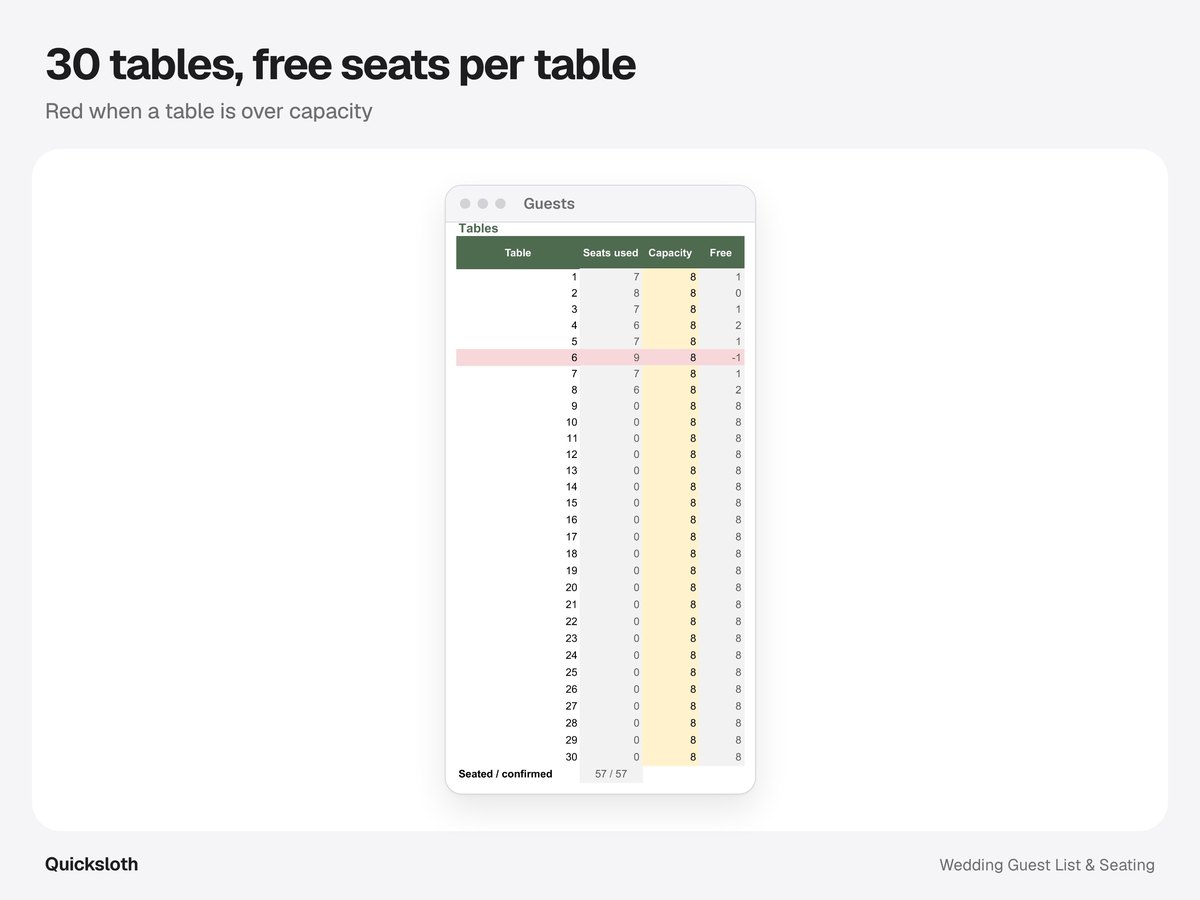
Because a guest who declines has 0 seats, their table frees up by itself, even if you forget to clear the table number. In the example, nine tables of 8 hold the 59 confirmed seats; table 7 has 9 and shows −1 free, in red: someone has to move. Below the table list, "Seated / confirmed" reads 59 / 59, so everyone who said yes has a table. In the copy, tables 8 and 9 are still empty: their guests hadn't answered yet.
Keep the counts honest
- Pick the answer from the drop-down. Anything that isn't Yes or No counts as pending: we typed "Y" in the RSVP cell of a pending guest and the counts didn't move.
- One row per person. A row for "the Smiths" counts as one seat. Write each person, children included, so the headcount and the meals are right.
- Don't delete people who decline. Set them to No: the declined count stays right and you still have their address for a thank-you or an announcement.
- Write down who you've chased. If your sheet has a notes column, a few words like "texted on the 3rd" save you asking twice.
- Check the total before you send it. Meals added up should equal seats confirmed, and seats per table should equal it too.
For when to send invitations, chase missing replies and send the final count, see our wedding planning checklist; for table sizes, who to seat first and the lists for the venue, how to make a wedding seating chart in a spreadsheet.
Do it in a spreadsheet
Every formula on this page is in our Wedding Guest List & Seating spreadsheet, for Excel and Google Sheets: up to 500 guests, the RSVP, meal and plus-one drop-downs, a table board for 30 tables with a red warning when one is too full, the venue capacity on the first tab and a thank-you column for after the wedding. It comes with the example used on this page. It's available in our Etsy shop. If you also need a checklist and a budget, our Simple Wedding Planner has the same Guests tab with a 20-table board.
The guests, replies and numbers are made up, from the example file of our Wedding Guest List & Seating spreadsheet; the "14 still out" column is a copy of it with 14 replies set back to Pending. We used AI tools to help write this article and the formulas; every number was recalculated in LibreOffice and recounted by a separate script.