 Quicksloth
How to add a dyslexia-friendly font to a WordPress site
Last updated: 1 November 2026
Some readers with dyslexia like fonts such as OpenDyslexic. WordPress has no built-in way to let a visitor switch to one, but there are three simple ways to offer it: a small switch in your theme, a plugin, or an accessibility toolbar. Here is how each one works, what the studies say about these fonts, and what the font's license asks of you.
Short version: offer the font as a choice that each visitor turns on, never as the font of the whole site: the studies we found did not show these fonts making reading faster or more accurate, and readers in them preferred ordinary fonts. Serve the font file from your own site, keep its license file next to it, and check that your pages still work with more spacing.
We make an accessibility toolbar for WordPress that includes a dyslexia-friendly font, so weigh what we say with that in mind. Every fact below links to its source, read on 1 November 2026. This is general information, not medical or legal advice.
Before you start: what the studies say
OpenDyslexic calls itself "a typeface designed against some common symptoms of dyslexia" and leaves the choice to the reader: "If you like the way you are able to read this page, and others, then this typeface is for you!" (opendyslexic.org). Researchers who tested it found no reading advantage:
- Rello and Baeza-Yates, 2013 (ACM ASSETS 2013): 48 people with dyslexia, aged 11 to 50, read short Spanish texts in 12 fonts while an eye tracker measured their reading. OpenDyslexic and its italic "did not lead to a better or worse readability", and participants "significantly preferred Verdana or Helvetica for reading" over them. Sans serif, monospaced and roman (upright) fonts did better than serif, proportional and italic ones; the authors suggest Helvetica, Courier, Arial, Verdana and Computer Modern Unicode, and advise avoiding Arial Italic. They did not test reading words aloud, where they say a special font might still help.
Studies with children found the same: no gain in speed or accuracy with OpenDyslexic (Wery and Diliberto, 2017) or with a similar font, Dyslexie (Kuster and others, 2018). These studies measure speed and accuracy rather than comfort, and some readers simply like a dyslexia font, which is a good reason to let them choose it. What the research does support is extra spacing: our page on dyslexia-friendly fonts and what the research says covers these studies, the spacing studies and the WCAG text spacing values.
Three ways, side by side
| Way | What you do | What visitors get |
|---|---|---|
| 1. A switch in a child theme | Add two small files, a few lines in functions.php, and the font | One button that turns OpenDyslexic on and off |
| 2. A plugin | Search the plugin directory and compare a few | Depends on the plugin: often a full toolbar |
| 3. Our free toolbar | Install and activate one plugin | OpenDyslexic plus spacing, text size and other tools |
With your theme: a switch in a child theme
Put this in a child theme, so a theme update does not erase it. It adds a button in the bottom-left corner; the font file is downloaded only when a visitor turns it on, and the choice is remembered in that visitor's browser.
- Get the font. Download the newest OpenDyslexic package (not the older 0.91.12, which has a different license) from the official site, or take
OpenDyslexic-Regular.woff2andOFL.txtfrom thecompiledfolder of the project's source repository. Copy the font file and the license fileOFL.txtinto afontsfolder inside your child theme. If your download has a different format, change the file name and theformat()value below ("opentype"for .otf,"woff"for .woff). - Add
dyslexia-font.cssto the child theme folder:
@font-face {
  font-family: "OpenDyslexic";
  src: url("fonts/OpenDyslexic-Regular.woff2") format("woff2");
  font-display: swap;
}
html.dyslexia-font body :is(p, li, dt, dd, a, time, summary, legend, caption, address, blockquote, figcaption, td, th, label, input, textarea, select, button, h1, h2, h3, h4, h5, h6) {
  font-family: "OpenDyslexic", Verdana, sans-serif !important;
}
.dyslexia-font-toggle {
  position: fixed;
  bottom: 1rem;
  left: 1rem;
  z-index: 99999;
  padding: 0.6em 1em;
  border: 2px solid #fff;
  border-radius: 6px;
  background: #1d1d1f;
  color: #fff;
  font-size: 16px;
  cursor: pointer;
}
.dyslexia-font-toggle[aria-pressed="true"] {
  background: #0b57d0;
}- Add
dyslexia-font.jsnext to it:
(function () {
  var root = document.documentElement;
  var on = false;
  try { on = localStorage.getItem('dyslexiaFont') === '1'; } catch (e) {}
  root.classList.toggle('dyslexia-font', on);

  var button = document.createElement('button');
  button.type = 'button';
  button.className = 'dyslexia-font-toggle';
  button.textContent = 'Dyslexia-friendly font';
  button.setAttribute('aria-pressed', on ? 'true' : 'false');
  button.addEventListener('click', function () {
    on = !on;
    root.classList.toggle('dyslexia-font', on);
    button.setAttribute('aria-pressed', on ? 'true' : 'false');
    try { localStorage.setItem('dyslexiaFont', on ? '1' : '0'); } catch (e) {}
  });
  document.body.appendChild(button);
})();- Load both files from the child theme's
functions.php(if the child theme has nofunctions.phpyet, create it and start it with a line containing only<?php):
add_action( 'wp_enqueue_scripts', function () {
  $dir = get_stylesheet_directory_uri();
  wp_enqueue_style( 'mychild-dyslexia-font', $dir . '/dyslexia-font.css', array(), '1.0' );
  wp_enqueue_script( 'mychild-dyslexia-font', $dir . '/dyslexia-font.js', array(), '1.0', true );
} );
We tested exactly this code on WordPress 7.1.4 with a child theme of Twenty Twenty-Five, in Chromium: before the click no font file was requested; after it, the site title, menu, headings, paragraphs, post dates and Read more links switched to OpenDyslexic, loaded once from the child theme's folder; the choice survived a reload; the button works with the keyboard (it is a real button that exposes its on/off state with aria-pressed), and axe-core found no problems on it. Icon fonts and code blocks keep their own font, because the rule lists text elements instead of changing every element. If your theme gives some text its own font through other elements, add them to the list.
Two limits: the page shows your normal font for a moment before the script switches it, and the button's label is in English; change the text in the script for other languages.
Making it the font of the whole site instead is possible without code: WordPress 7.0 made Appearance → Fonts available to all themes. You upload the font in the Upload tab; in a block theme you then choose it under Appearance → Editor → Styles, in a classic theme it depends on the typography options of your theme (the documentation says "Available options depend on your theme"; WordPress documentation, The Font Library, updated 26 July 2026; we checked that the Fonts menu is there in WordPress 7.1.4, and took the rest from the documentation). We don't recommend it: in the studies above most readers did not prefer these fonts, and it changes the look of your site for everyone.
With a plugin
In your dashboard, go to Plugins → Add Plugin and search for "dyslexia": the directory listed 73 plugins on 1 November 2026, mostly accessibility toolbars that include a dyslexia font among other tools. Before you pick one, check four things on its page and in its readme:
- Where the font comes from. A font loaded from another company's server sends your visitors' IP addresses to it; a font bundled with the plugin stays on your site.
- Whether it needs an account or a connection to the plugin maker's service to work.
- That the font is a choice. It should be off until a visitor turns it on, and easy to turn off again.
- That the panel works with a keyboard: Tab to the button, open it with Enter, close it with Esc.
We compared several of these toolbars with ours on separate pages: Ally, OneTap, UserWay, accessiBe and AccessibleWP.
With our free toolbar
Our Quicksloth Accessibility Toolbar is free on WordPress.org. Install it from Plugins → Add Plugin, click Install Now, then Activate: a button appears in the bottom-right corner of your site, and its panel has a Dyslexia-friendly font tool among 25.
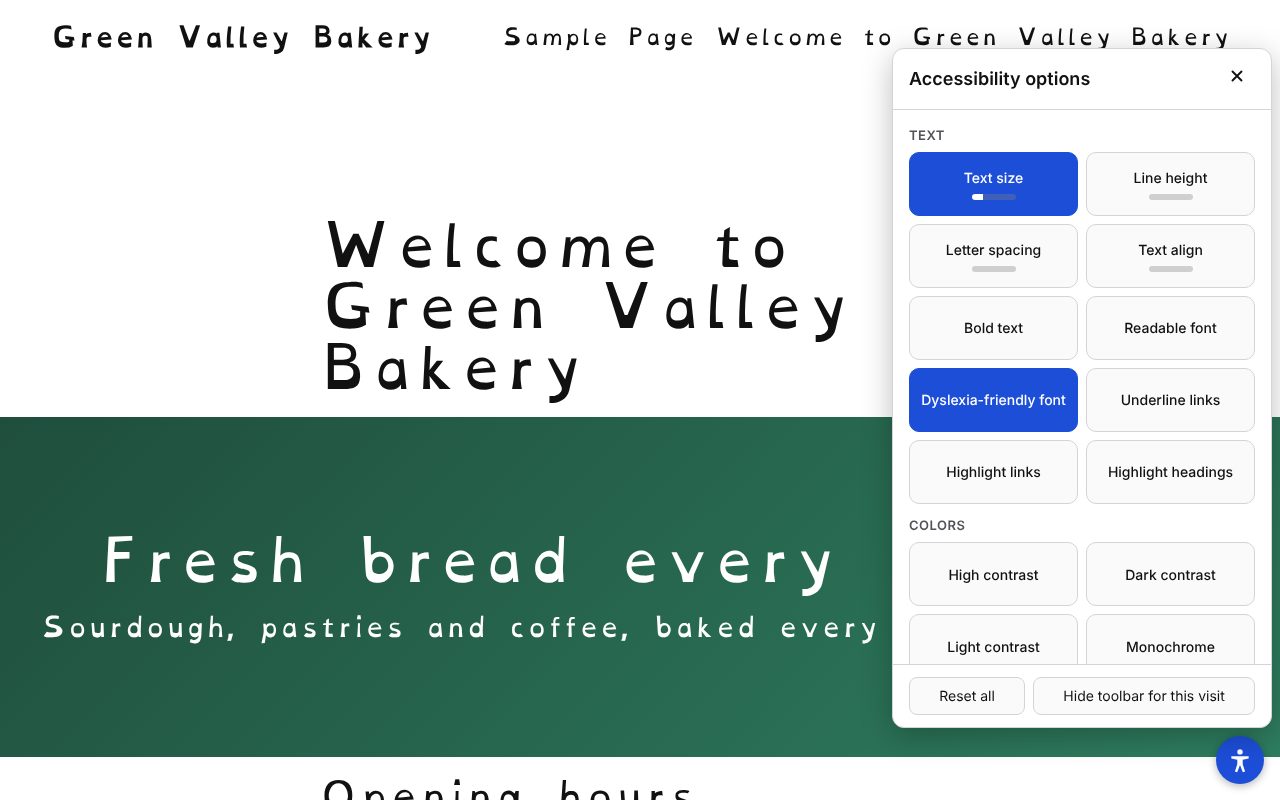
- The font ships with the plugin. OpenDyslexic (about 101 KB) is served from your own site and loaded only when a visitor turns the tool on; the plugin makes no requests to other servers, sets no cookies and needs no account.
- Icon fonts and code keep their own font, and if the font file cannot load, the page falls back to Comic Sans MS, Trebuchet MS or Verdana.
- Spacing is there too: Line height and Letter spacing in three steps each, Text size up to 175%, and a Readable font tool for visitors who prefer a plain sans-serif.
- The choice is remembered in the visitor's browser across pages and visits.
- You choose the tools. Under Settings → Accessibility Toolbar, untick under Tools shown anything you don't want to offer.
The panel is in English for now. You can try the font in the live demo.
An accessibility toolbar helps some visitors; it does not make a website conform to WCAG or to the law. Fix your content and code first.
OpenDyslexic's license
OpenDyslexic is free to use on a website. The project says its newest version "now uses the SIL-OFL license, giving you freedom to use it for personal use, business use, education, commercial, books, ebook readers, applications, websites, and any other project or purpose you need" (opendyslexic.org). The SIL Open Font License 1.1 sets three conditions that matter here:
- the font may not be "sold by itself", but it may be "bundled, redistributed and/or sold with any software";
- each copy must contain the copyright notice and the license: keep
OFL.txtnext to the font file; - a changed version may not use the reserved name "OpenDyslexic", and the license counts even "changing formats" as a change. The simplest path is to use the files the project publishes, unchanged.
Pages that use the font are not affected: the license says its terms do not apply "to any document created using the Font Software".
Three checks after adding it
- Nothing breaks with the font on. OpenDyslexic takes more room than most fonts (we saw it in our tests). Turn it on and look at menus, buttons and cards for text that is cut off or overlaps; do the same with more spacing, as in WCAG's 1.4.12 Text Spacing: our page on dyslexia-friendly fonts gives the four values and how to apply them in the browser; for zoom and reflow, see our WordPress accessibility checklist.
- It works with a keyboard. Press Tab until the button has focus, turn the font on with Enter or Space, and check that the focus outline is visible.
- The font comes from your site. In your browser's developer tools, open the Network tab, turn the font on and check that the font file is loaded from your own domain.
Questions and answers
- Will it slow my site down?
- Not for visitors who don't use it: in both the child theme above and our toolbar, the font file (about 101 KB) is downloaded only after a visitor turns the font on.
- Can I load OpenDyslexic from a CDN instead?
- You can, but every visitor who turns it on then connects to that server, which receives their IP address. Hosting the file on your own site avoids that, and the license allows it.
- Does the switch work with a caching plugin?
- It should: every visitor gets the same HTML, and the switch happens in the visitor's browser, so a cached page is fine. One setting can get in the way: if your optimization plugin delays JavaScript until the first click or scroll, the button appears only after that; exclude
dyslexia-font.jsfrom the delay. We worked this out from how the code runs; we did not test it with each caching plugin. - Can I put the button somewhere else?
- Yes. To move it to another corner, change
bottomandleftin.dyslexia-font-toggle, for exampletop: 1rem; right: 1rem;instead. To place it inside your header or menu, change the last line of the script (document.body.appendChild(button)) to add it to that element, and remove thepositionlines from the CSS.
Sources
All read on 1 November 2026.
- Rello, L. and Baeza-Yates, R. (2013), Good fonts for dyslexia, Proceedings of the 15th International ACM SIGACCESS Conference on Computers and Accessibility (ASSETS 2013).
- Wery, J. J. and Diliberto, J. A. (2017), The effect of a specialized dyslexia font, OpenDyslexic, on reading rate and accuracy, Annals of Dyslexia 67(2).
- Kuster, S. M., van Weerdenburg, M., Gompel, M. and Bosman, A. M. T. (2018), Dyslexie font does not benefit reading in children with or without dyslexia, Annals of Dyslexia 68(1).
- OpenDyslexic, official site.
- SIL International, SIL Open Font License 1.1, official text.
- WordPress documentation, The Font Library (updated 26 July 2026).
- WordPress developer resources, Child themes.
- WordPress.org plugin directory, search for "dyslexia" (73 results on 1 November 2026).
Written with AI tools and checked by Quicksloth: quotes compared with the linked pages, toolbar facts taken from the plugin's readme and code (version 0.1.2), child theme code tested on WordPress 7.1.4. Found something out of date? Tell us at support@quicksloth.dev and we will correct this page.